Home
Click for video
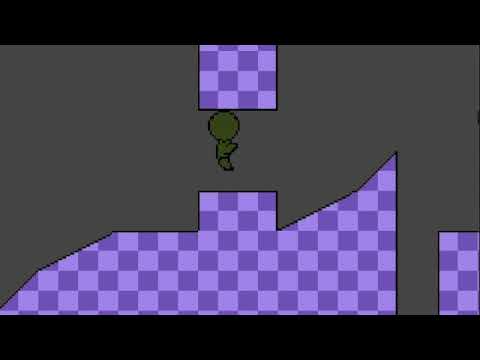
Kinematically Reinterpreted Implementation Needing Godot Engine (KRINGE for short) is a 2D platformer boilerplate for Godot that supports ramps and one-way platforms (known as "ledges" in the build).
The bare-bones implementation is just a single scene and a single unit type which is the player, but you can clone the with-npcs branch for the included features. The with-npcs-hitbox branch lacks documentation, but it has all the NPC features of with-npcs as well as the building blocks for combat.
The boilerplate leaves room for you to build custom stages with your own assets, as well as customizing different unit types along with their associated behaviors and sprites.
Before using this boilerplate, you would need to be already somewhat familiar with Godot basics, especially TileMap, GDScript, scene inheritance, and sprites/animations.
If you run the project straight out of the box, you can control the player through left/right arrow keys, while being able to jump with Z. You can pause with the Enter key. If you fall off the stage, you just fall indefinitely.
res://Scenes/SandboxScene.tscn contains a TileMap Stage where the building blocks of a level are assembled. The tile set used here is res://Tile Sets/TestTileSet.tres.
SandboxScene's Player node is an instance of res://Units/Player.tscn. Player has a script that inherits from res://Scripts/Unit.gd. The one exported field for all units is unit_type, which in the player's case is set to 0 for PLAYER.
The base node in SandboxScene.tscn has a script res://Scripts/GameScene.gd and takes a string parameter "Tile Set Name". Here, it is set to "TestTileSet" - this can a tile set of your choice, provided it is configured under the same name in res://Scripts/Constants.gd.
Constants.gd contains a dictionary TILE_SET_MAP_ELEMS that maps each tile set name a to sub-dictionary that maps MapElemType to a list of tile indices (the value type returned by TileMap's get_cellv()) of the tile set you're using. This dictionary is used to determine which stage element each specific tile in your tile map corresponds to. Here's a rundown of the different elements:
-
SQUARE- collision box that takes up the full tile -
SLOPE_LEFT- 1x1 ramp that spans one tile corner to corner, left-right incline -
SLOPE_RIGHT- 1x1 ramp that spans one tile corner to corner, right-left incline -
SMALL_SLOPE_LEFT_1- lower portion of a 2x1 ramp that spans 2 tiles side by side, left-right incline -
SMALL_SLOPE_LEFT_2- upper portion of a 2x1 ramp that spans 2 tiles side by side, left-right incline -
SMALL_SLOPE_RIGHT_1- lower portion of a 2x1 ramp that spans 2 tiles side by side, right-left incline -
SMALL_SLOPE_RIGHT_2- upper portion of a 2x1 ramp that spans 2 tiles side by side, right-left incline -
LEDGE- one-way platform, its only collidable surface is the top edge of the tile
Towards the end of Constants.gd, you'll see several constants that affect gameplay mechanics.
-
UNIT_TYPE_MOVE_SPEEDS,UNIT_TYPE_JUMP_SPEEDS,GRAVITY, andMAX_FALL_SPEEDare pretty self-explanatory -
SCALE_FACTORrefers just to the stage elements and player sprites now, but this constant comes in handy if there's anything else you want to scale visually -
GRID_SIZEis the length of one map unit in pixels, i.e. the length/width of your stage tiles (pre-scaling) -
ACCELERATIONrefers to how quickly units pick up speed or slow down as they move -
QUANTUM_DISTis not really specific to game mechanics and you can choose to ignore it. Basically, there's always a small distance between a player's collision checking points (its hitbox, if you will) and any given collidable surface in the stage. For example, there shouldn't be a situation where the player's feet occupy the same point in world space as the floor they are touching, to avoid complicating things.QUANTUM_DISTneeds to be small enough to not be noticeable during gameplay.
Constants.gd also has a dictionary CURRENT_ACTION_TIMERS which is explained further in the Defining a Custom Unit section, but it binds a duration to a UnitCurrentAction. Here in the boilerplate, you can control how high you can jump by defining how long your jump input should be registered.
- If you're using a custom tile set, save it in
res://Tile Sets/.- In
res://Scripts/Constants.gd, make a new entry in theTILE_SET_MAP_ELEMSdictionary for your custom tile set
- In
- Make a new scene and attach
res://Scripts/GameScene.gd. Set the "Tile Set Name" script variable to the corresponding tile set name inTILE_SET_MAP_ELEMSinConstants.gd. - Make a TileMap child node to your root node. It must be named Stage. Build your tile map using the tile set corresponding to the
TILE_SET_MAP_ELEMSentry referenced by "Tile Set Name". Note: only put stage elements into this tile map, no background elements, etc. - Add a player instance under your root node. It must be named Player. (The boilerplate resource is
res://Units/Player.tscn, which you are free to edit and customize.) - Add a Camera2D object as a child of the player instance, which will be the main camera. It must be named Camera2D. The viewport will shift when the player changes their facing direction. You can configure its smoothing in the editor.
A unit follows an archetype, which comes with its own archetype-specific properties, behaviors, and sprites.
-
res://Units/exists to house unit archetypes. In your custom unit scene root node (which should be a Node2D), attach your custom unit script from theres://Scripts/Units/directory. LikePlayer.gd, it should inherit fromres://Scripts/Unit.gd. (If you're editingres://Units/Player.tscnitself, then you'd want to be editingres://Scripts/Units/Player.gd.)-
Unit.gdconsumes an int parameter "Unit Type", which for Player would be set to0. If you're making a non-player unit, you'd need to define the unit type inConstants.gdand set this parameter to the int representing itsUnitTypeenum value inConstants.gd.
-
- The root node's children are the Sprites and AnimatedSprites that belong to this unit type. The next section includes a description of how to bind them to your custom unit type.
Making a new UnitType, or further customizing an existing one, comes with its own set of housework. See below for the relevant Constants.gd sections that allow you to configure a custom unit type.
-
enum UnitType- A list of different unit types. You'll need to add a new enum here. -
enum ActionType- Add new actions as you see fit (for example, crouch, recoil, etc.). The pool of actions available for a given unit type is maintained inUNIT_TYPE_ACTIONS. -
enum UnitCondition- Every unit contains a set of conditions, which are defined here. Treat each condition as an individual axis belonging to the player, within which they can only assume one position at any given time. Their default values are configured inUNIT_TYPE_CONDITIONS. Configure the default conditions for your unit types there.- A unit can only have one
CURRENT_ACTIONat any given point in time. The pool of current actions available for a given unit type is configured inUNIT_TYPE_CURRENT_ACTIONS. ACURRENT_ACTIONof typeenum UnitCurrentActionis something that persists across multiple frames and shouldn't be confused with actions underActionType, which are only evaluated for a specific frame. - Likewise, units can only have one
MOVING_STATUSat any given point in time.enum UnitMovingStatusis the pool of available moving statuses. By default, you only haveIDLEandMOVING, but you can add more statuses, like dashing, if you want that feature.
- A unit can only have one
-
CURRENT_ACTION_TIMERSis to configure durations for selectUnitCurrentActions (that have a timeout) per unit type. For now, it's only used to configure how long a player's jump command is recognized before gravity takes over and the player'sCURRENT_ACTIONautomatically becomesUnitCurrentAction.IDLE. -
ENV_COLLIDERSis where the (environmental) collision detection for a given unit type is configured. To takePLAYER's example, we have 6 collision detection points - one at the player's origin(0, 0), or where their feet are located, one at the top of their head(0, 1.5), and a few in between. The unit of measure is in grid units. (More about grid space later.) The list ofDirections describe which directions the given collision detection point checks for. For example, the one at the player's feet checks for left, down, and right collisions. -
UNIT_SPRITESgroups a given unit type's sprites into different classes. The sprite configuration is mostly intended to be parsed by the custom unit script unless they have to do with being idle, moving, or jumping, which are assumed universal across all unit types and hence parsed byres://Scripts/Unit.gd. The "Nodes" portion of the config are extracted among the children of the unit root node (i.e. the Sprites and AnimatedSprites).
Let's take a look at how one simple action is propagated through the game logic, to give an idea of what customizing new/existing actions and new/existing unit types would entail. We can trace through the scenario where a player starts off at a state of being idle, to having received the command to jump.
- In the initial idle state, the unit's conditions are as follows:
-
CURRENT_ACTION=IDLE -
IS_ON_GROUND=true -
MOVING_STATUS=IDLE(This one condition isn't really relevant to our scenario, so we'll ignore it going forward.)
-
- In this frame, the player's input for jumping (Z key) is to be registered.
-
_process(), Godot's default per-frame handler, is called fromres://Scripts/GameScene.gd. The following steps break down the components of this call. -
reset_actions()is called on the player unit to provide a blank slate in which this frame's player actions will be registered. Next, the base methodhandle_input()does just that viahandle_player_input()inGameScene.gd. By default, input is interpreted within the GBA control scheme, so you see constants likeConstants.PlayerInput.GBA_A, which is mapped to the Z key.- The
actionsdictionary inUnit.gdis updated to have itsJUMPaction type mapped totrue. In other words, we're setting the "jump" flag for this unit for this frame.
- The
-
process_unit()inUnit.gdis called. Think of this function as the unit "declaring its intention." In other words, the movement speed is set according to the actions the unit is taking this frame, without taking the environment (i.e. the stage) into account just yet. Theexecute_actions()function of bothUnit.gdandPlayer.gdis called. Here is where we check each action type available for this unit type to see if the unit is taking the action this frame. Since we're jumping this frame, we have a function that handles it: thejump()function inUnit.gd. This is a special case in that jumping is assumed to be universal across all unit types - any action that is specific to a particular unit type should be handled in said unit type's respective class.-
CURRENT_ACTIONis set toJUMPING - We update the unit's
v_speed(vertical speed). -
IS_ON_GROUNDis set tofalse - We set the unit's sprite to the Sprite node indicated by 0th element of the
JUMPnode list, as defined inUNIT_SPRITESinConstants.gd. In this case, it's the Jump1 node in the Player scene.
-
-
interact()inStageEnvironment.gdis called on the unit. Here, we take the unit, which already "declared its intention" via its updated movement speed, and apply gravity and collision calculations to it. The result is a new movement speed (which may or may not end up being the same.) During the first frame of jumping, there isn't much in the way of collisions, so all we're doing is applying 1 frame's worth of gravity to the unit. The slight decrease in the unit'sv_speedwon't accumulate over the next few frames if the player keeps the jump key pressed down because the nextprocess_unit()calls would setv_speedto whatever the jump value is again. - The unit
react()s and executes on the movement speed (i.e. thev_speed(vertical speed) andh_speed(horizontal speed)) it ends up with at this point. We arrive at its newposvector (which is distinguished frompositionin thatposis in grid space instead of world space). 1 unit of grid space corresponds to the number of pixels defined byGRID_SIZEinConstants.gd. Grid space shares the same origin with world space, although contrary to world space, the y value increases from bottom to top. All measurements and calculations in KRINGE are done in grid space. - Here are the unit's resulting conditions.
-
CURRENT_ACTION=JUMPING -
IS_ON_GROUND=false
-
Try the following exercises!
Camera jitter may be the cause of horizontal lines appearing on tile maps. To prevent this, go to Project Settings > Rendering > 2d and turn on Use Gpu Pixel Snap.
If you find any bugs or have any comments, I'm here for it! My contact info is below.
Usage permissions: This is free to use, but I would kindly request credit given where it's due.