Grupos
Groups in Godot work like tags in other software. You can add a node to as many groups as you want. Then, in code, you can use the SceneTree to:
Get a list of nodes in a group.
Call a method on all nodes in a group.
Send a notification to all nodes in a group.
This is a useful feature to organize large scenes and decouple code.
Gerenciando grupos
Groups are created by adding a node to a new group name, and likewise they are removed by removing all nodes from a given group.
Há duas maneiras de acrescentar/remover nós aos grupos:
During design, by using the Node dock in the editor, or the Global Groups in project settings.
During execution, by calling Node.add_to_group() or Node.remove_from_group().
Usando o painel do nó
You can create new groups using the Groups tab in the Node dock.
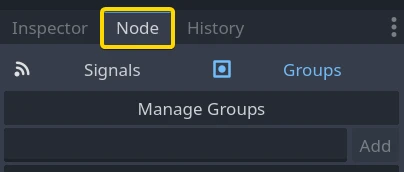
Select a node in the Scene dock then click the add button with the + symbol.

You should now see the Create New Group modal appear. Write the group name in the field.
You can optionally mark the option "Global", which will make the group visible project-wide, and able to be reused in any project scene. This will also allow you to give it a description.
When done, press Ok to create it.

You should see the new groups appear in the Groups tab under Scene Groups if the Global option was unmarked, or under Global Groups if that option was marked.
A selected Node from the Scene dock can be added into groups by marking the checkbox on the left side of the groups in the Groups dock. The node you had selected when creating a new group will be automatically checked.

All groups present in the project that were marked as Global, created from any scene, will be visible under Global Groups.
Any other group derived from nodes in the current scene will appear under Scene Groups.
Aviso
The same underlying logic is used for both Global and Scene groups. Groups with the same name are considered one and the same. This feature is purely organizational.

You can manage Global Groups in the Global Groups dock, inside Project Settings. There, you will be able to add new global groups, or change existing groups' names and descriptions.

Usando código
Você também pode administrar grupos a partir de scripts. O seguinte código adiciona o nó ao qual você anexa o script ao grupo guards assim que ele entra na árvore de cena.
func _ready():
    add_to_group("guards")
public override void _Ready()
{
    base._Ready();

    AddToGroup("guards");
}
Imagine you're creating an infiltration game. When an enemy spots the player, you want all guards and robots to be on alert.
In the fictional example below, we use SceneTree.call_group() to alert all
enemies that the player was spotted.
func _on_player_spotted():
    get_tree().call_group("guards", "enter_alert_mode")
public void _OnPlayerDiscovered()
{
    GetTree().CallGroup("guards", "enter_alert_mode");
}
O código acima chama a função enter_alert_mode em cada membro do grupo guards.
Para obter a lista completa de nós no grupo guards como uma matriz, você pode chamar SceneTree.get_nodes_in_group():
var guards = get_tree().get_nodes_in_group("guards")
var guards = GetTree().GetNodesInGroup("guards");
A classe SceneTree fornece muitos métodos úteis para interagir com cenas, suas hierarquias e grupos de nós. Ela lhe permite facilmente trocar ou recarregar cenas, sair do jogo ou pausa-lo ou retomá-lo. Ela também fornece sinais úteis.